3D Tutorial

Edit Poly - Adding Details
06.06.2008 Category: 3D (Modeling)12. Add Details With Chamfer

Picture 1. Six edges selected.
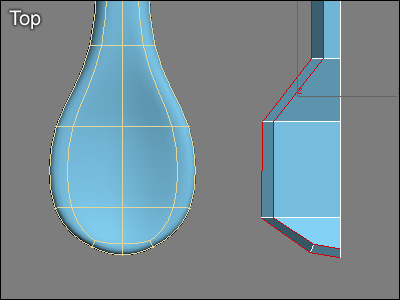
Picture 2. Chamfer function creates new edges (Edit Poly).
The edge of the spoon is too round. Let's add some definition to it with the Chamfer function. Chamfer function can be used to chamfer an edge so that it divides into two edges:
- Activate the edge sub-object mode in Edit Poly and select six edges from the upper part of the spoon according to picture 1.
- Click on Chamfer button. Click and hold the mouse button on top of some of the selected edges and move the mouse. The result should look like in picture 2.
13. Break Vertices

Picture 3. Break function creates new vertices (Edit Poly).
The spoon still needs more details:
- Activate the vertex sub-object mode in Edit Poly and select two vertices according to picture 3.
- Click Break button in Edit Poly modifier. Break function divides the common vertex of the polygons. As a result there are as many vertices as there are corners of the polygons.
14. Move Vertices

Picture 4. Vertices are separated and moved with Edit Poly modifier.
Two vertices have become eight vertices. Place vertices according to picture 4.
15. Weld With Target Weld

Picture 5. Vertices are welded with Edit Poly's Target Weld function.
Weld vertices which are close to each other by using Target Weld function according to picture 5.
16. Cut Polygons
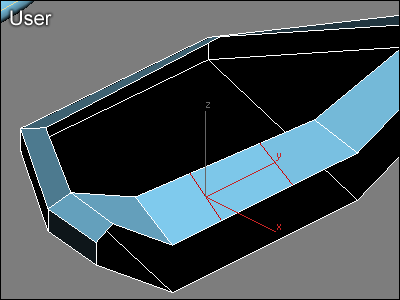
Picture 6. Cutting polys with Edit Poly modifier.
Activate the edge sub-object mode in Edit Poly and use the Cut function twice to divide a polygon into three parts according to picture 6. In this situation the Cut function works like this:
- Activate Cut function in Edit Poly
- Click on the edge of the polygon
- Click on the opposite edge of the polygon
- Right click to deactivate the Cut function
(Cut-function could also be used to Cut a polygon between a vertex and an edge.)
17. Move Vertices

Picture 7. Moving vertices with Edit Poly modifier.
Shape the spoon by activating the vertex sub-object mode in Edit Poly and by moving vertices according to picture 7.
18. Create New Polygons
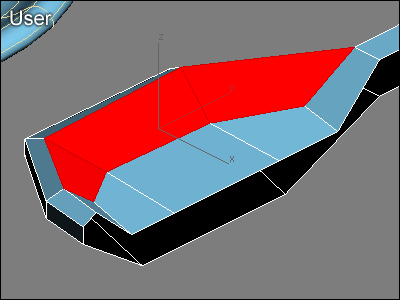
Picture 8. New polygons with the Create function (Edit Poly).
Next the hole in the spoon will be filled. Activate the polygon sub-object mode in Edit Poly and create three new four-sided polygons according to picture 8. A new polygon is created like this:
- Click the Create button in Edit Poly
- Click on the vertex where the first corner of the polygon will be
- Click on the vertex where the second corner of the polygon will be
- Click on the vertex where the third corner of the polygon will be
- Click twice on the vertex where the fourth corner of the polygon will be
19. Shape the Spoon

Picture 9. Shaping the lower part of the spoon.
- Orbit the user view so that you can see the bottom of the spoon.
- Activate the vertex sub-object mode in Edit Poly and shape the lower part of the spoon by moving vertices according to picture 9.
20. Definition With Slice Plane

Picture 10. Adding definition with the Slice function (Edit Poly).
Next we'll add more definition to the handle of the spoon. We'll use the Slice function and slice polygons according to picture 10:
- Activate the polygon sub-object mode in Edit Poly and select four polygons according to picture 10.
- Activate the Slice Plane function. A yellow plane appears. If necessary move and rotate the yellow plane according to picture 10.
- Click the Slice button. The selected polygons are now sliced according to the slice plane. Finally click the Slice Plane button again to deactivate it.
21. Shape the Handle

Picture 11. A curved handle of the spoon.
Activate the vertex sub-object mode in Edit Poly and shape the handle of the spoon by moving vertices according to picture 11.
22. Polygons With Scale Function

Picture 12. The end of the spoon.
- Orbit the user view to match picture 12, activate the edge sub-object mode in Edit Poly and select four edges surrounding the hole in the end of the spoon.
- Activate Scale function in the top panel. Press Shift in keyboard and create new polygons by cloning the selected edges with the scale tool. The result should be similar to picture 12.
23. Clone Edges

Picture 13. Polygons by cloning edges.
Create two new polygons by cloning edges according to picture 13.
24. Edit Poly's Target Weld

Picture 14. Edges are joined with the Target Weld function (Edit Poly).
- Activate the edge sub-object mode and Target Weld function in Edit Poly.
- First click on the lower edge and then click on the upper edge. Edges are welded together according to picture 14. Finally click on Target Weld button again to deactivate it.
25. Fill the Hole
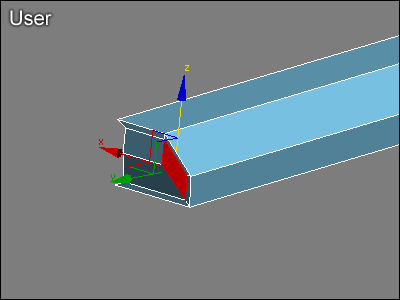
Picture 15. The hole is filled with the Create function (Edit Poly).
Fill the hole in the end by activating the polygon sub-object mode in Edit Poly and using the Create function to create a four-sided polygon according to picture 15.
26. Move Vertices to the Center

Picture 16. Vertices are moved to the center of the spoon.
- Switch to the Back view and activate the vertex sub-object mode in Edit Poly.
- Select three vertices in the end of the spoon and place them in to the center of the spoon according to picture 16.
27. Edit Poly's Extrude
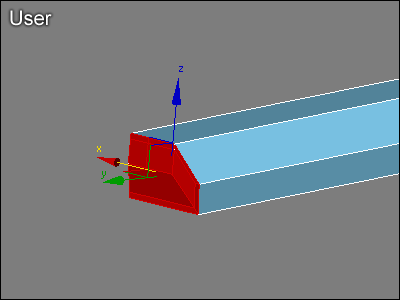
Picture 17. Polygons in the end are selected.

Picture 18. The handle of the spoon is extended.
Let's extend the handle of the spoon.
- Activate the polygon sub-object mode in Edit Poly and select all seven polygons from the end of the spoon according to picture 17.
- Click on the Extrude button. Click and hold the mouse button on top of the polygons and move the mouse.
- Place the new polygons according to picture 18.
28. Remove Unnecessary Polys

Picture 19. Unnecessary polygons.
Because of the Extrude function there are four unnecessary polygons in the handle of the spoon. Select the unnecessary polygons according to picture 19 and erase them by pressing delete button in keyboard.
29. The 3D Model of a Spoon is Complete

Picture 20. The structure of the complete 3D model of the spoon.
Now the 3D model of the spoon is complete and it's structure should match the structure of the spoon in picture 20. Finalize the spoon by moving polygons, edges and vertices. View the model from all angles, fix errors and shape the spoon to your liking.